
Over 1.4 billion devices run Windows worldwide today. Most users open Task Manager only when something breaks. A Task Manager Guide helps anyone move beyond that reactive habit. It turns this built-in tool into a daily performance advantage, not just an emergency fix.
Most people are running Windows at a fraction of its potential. The processes running right now, the memory being consumed silently, the startup programs slowing everything down, all of it is visible inside one tool. What does it take to actually read those signals and act on them?
What Windows Task Manager Actually Is
Task Manager is Windows’ built-in system monitoring and management tool. It shows everything running on the machine in real time. CPU, memory, disk, and network usage all update live.
It handles far more than closing frozen apps. It diagnoses slowdowns, manages startup programs, and surfaces hidden performance issues. Modern versions in Windows 10 and 11 are significantly more capable than earlier iterations.
Anyone serious about IT performance should know it inside and out. Businesses scaling their infrastructure also benefit from pairing machine-level insights with Cloud Infrastructure Services at the organizational level.
How to Open Task Manager: Four Methods That Work
The fastest method is pressing Ctrl + Shift + Esc, which opens Task Manager instantly. Right-clicking the taskbar and selecting Task Manager works well during normal use. Pressing Ctrl + Alt + Delete brings up a menu with Task Manager as one of the options.
The Windows Key + X shortcut opens the Quick Access Menu, which includes Task Manager alongside other system tools. Each method fits a different situation. Knowing all four means never fumbling for access during a high-pressure moment.
Breaking Down Every Tab in Task Manager
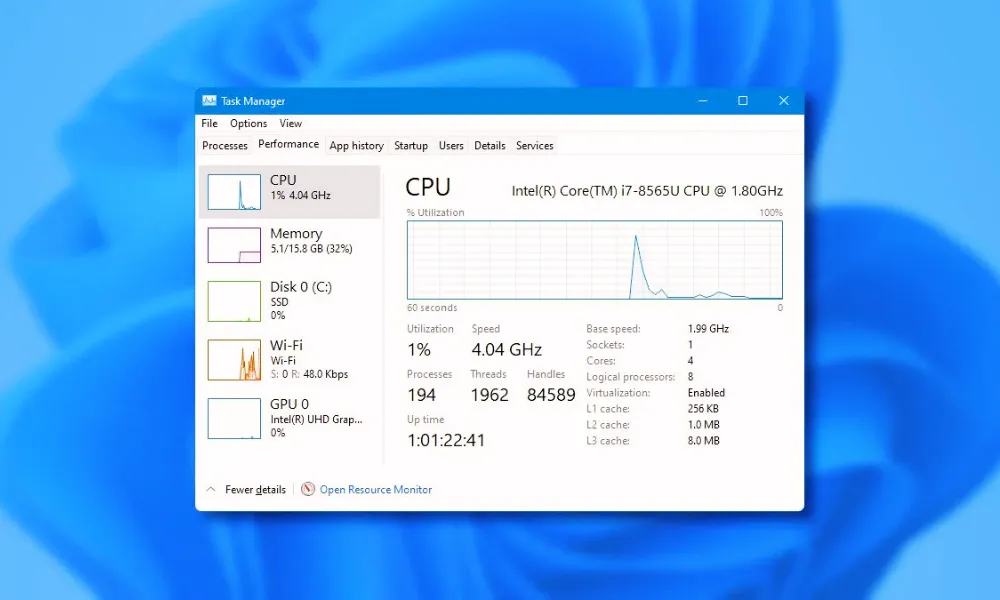
Each tab tells a different part of the system’s story. The Processes tab lists every running app and background task with live resource data. The Performance tab shows real-time graphs for CPU, RAM, disk, GPU, and network activity.
The Startup tab reveals which programs launch automatically at boot and shows their impact level. The App History tab tracks Windows Store app resource usage over 30 days.
The Details tab gives granular process data, including Process IDs. The Services tab lets admins start, stop, or restart background Windows services carefully. Skipping any tab means leaving real diagnostic capability unused.
Most Common Use Cases That Solve Real Problems
The Task Manager Guide covers high-value use cases every Windows user will eventually face. Killing unresponsive apps means right-clicking them in the Processes tab and selecting End Task.
Sorting by CPU or Memory immediately identifies what is actually slowing the system down. Disabling high-impact startup programs from the Startup tab speeds up boot times without uninstalling anything.
The Performance tab helps spot sustained high usage, pointing to a hardware bottleneck. Monitoring the network graph traces unexpected bandwidth consumption back to its source.
Spotting these issues at the machine level is step one, and extending that awareness organization-wide is where Advanced Cybersecurity Services helps teams connect individual signals to broader security monitoring.
Task Manager in Modern IT Operations
Individual machine monitoring is just one layer of a much larger picture. The diagnostic logic behind the Task Manager Guide, which involves spotting anomalies, tracing unexpected resource use, and identifying bottlenecks, scales directly into enterprise IT thinking.
AI Automation in IT Operations applies that same logic across thousands of endpoints simultaneously and detects performance issues before they become outages.
Understanding Task Manager fundamentals remains essential even as automation grows. AI surfaces alerts, and humans still need to understand what those alerts mean and act on them correctly.
Frequently Asked Questions
What is the fastest way to open Task Manager?
Pressing Ctrl + Shift + Esc opens Task Manager instantly without navigating through any menus or screens.
Is it safe to end any process in Task Manager?
No, system processes like svchost.exe and winlogon.exe are critical and ending them causes crashes or forced restarts.
Why is the CPU at 100% with nothing visibly open?
Background tasks like Windows Update or antivirus scans are common culprits, and sorting by CPU in the Processes tab finds the exact source fast.
How does the Startup tab improve PC performance?
Disabling high-impact startup entries reduces boot time and frees up memory without uninstalling the programs themselves.
Can Task Manager detect malware?
It surfaces suspicious activity like unusual CPU spikes or unfamiliar process names, but it is not a replacement for dedicated security software.
What is the difference between the Processes and Details tabs?
The Processes tab groups items for everyday monitoring, while the Details tab gives granular data like PIDs and exact CPU time for IT professionals.
How does Task Manager relate to enterprise IT monitoring?
Task Manager shows one device at a time, while enterprise tools apply the same diagnostic logic across entire networks simultaneously.